
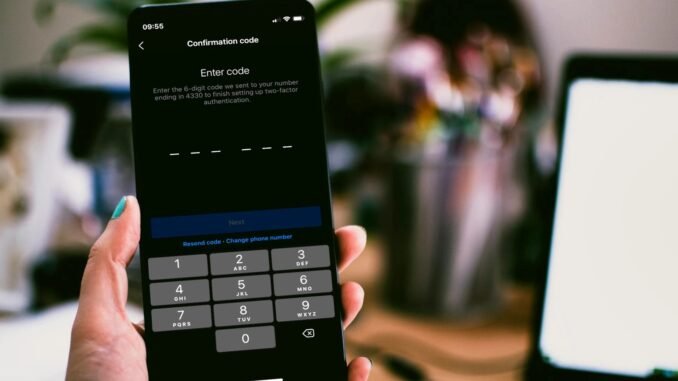
What is two-factor authentication and how do I set it up? If you do one thing for your online security this year, make it this. Two-factor authentication (2FA) is the single most effective protection against hacked accounts, Microsoft’s research found it blocks 99.9% of automated attacks. I have watched friends lose email, banking, and social accounts to password theft, and every single one would have been saved by 2FA. Setup takes about two minutes per account.
What Is Two-Factor Authentication, in Plain English?
Normally, your password is the only thing protecting your account, one factor. 2FA adds a second factor: something you have (your phone) in addition to something you know (your password). Even if a hacker steals your password from a data breach, they cannot get in without that second factor. It is like a deadbolt on top of your regular lock.
The three common second factors, ranked:
- Authenticator apps (best for most people): Apps like Google Authenticator, Microsoft Authenticator, or Authy generate a 6-digit code that changes every 30 seconds. Free, works offline, and immune to SIM-swapping. This is what I recommend.
- Hardware security keys (most secure): Physical USB/NFC keys like YubiKey ($25-$55). You tap the key to log in. Phishing-proof and the gold standard, overkill for most people but perfect for high-value accounts.
- SMS text codes (better than nothing): Codes sent via text message. Convenient, but vulnerable to SIM-swapping attacks where criminals hijack your phone number. Use this only if the account offers nothing better.
How to Set It Up: The Priority Order
Do not try to secure 100 accounts today. Secure these five first, in order, because everything else depends on them:
- Your email (Gmail, Outlook, iCloud). Your email is the master key: password resets for every other account flow through it. Gmail: account.google.com > Security > 2-Step Verification. This one matters more than all the others combined.
- Your bank and financial accounts. Every bank, brokerage, and payment app (Venmo, PayPal, Cash App) offers 2FA. Turn it on everywhere money lives.
- Password manager. If you use one (and you should), its 2FA protects all your other passwords.
- Social media. Facebook, Instagram, X, TikTok all support authenticator apps. Social accounts get targeted for scams and impersonation constantly.
- Cloud storage and phone accounts. iCloud, Google account, and your carrier account (prevents SIM swapping).
Then work through shopping (Amazon), work accounts, and everything else over the following weeks. Most services put it under Settings > Security > Two-factor authentication.
Step-by-Step: Setting Up an Authenticator App
- Install Authy or Google Authenticator (Authy syncs across devices, which saves headaches when you get a new phone).
- On the website, go to security settings and choose “Authenticator app” as your 2FA method. A QR code appears.
- Scan the QR code with the authenticator app. It starts generating 6-digit codes.
- Enter the current code on the website to confirm. Done.
- Save the backup/recovery codes the site shows you. Screenshot them, print them, store them in your password manager. These are your lifeline if you lose your phone.
Avoid These 2FA Mistakes
- Not saving recovery codes. The number one 2FA disaster is losing your phone with no backup codes. Save them during setup, every time.
- Using SMS when an app is available. SIM-swapping is a real and growing attack. The FTC warns about it specifically. Authenticator apps are not meaningfully harder to use.
- Only securing some accounts. Hackers go for the weakest link. Your email with 2FA plus your bank without it is still a vulnerable bank.
- Ignoring the “remember this device” option thoughtfully. It is fine on your personal devices, never use it on shared or public computers.
- Forgetting to transfer when you get a new phone. Move authenticator apps before wiping the old phone. Authy’s multi-device sync makes this painless; Google Authenticator now offers cloud sync too.
What About Passkeys?
Passkeys are the emerging replacement for passwords+2FA combined, built into iPhones, Android phones, and browsers. They are phishing-proof and you never type anything. Google, Apple, and Microsoft all support them now. When a site offers “Sign in with passkey,” take it, it is the future arriving early, and it is genuinely both easier and safer than passwords.
The Bottom Line
Two-factor authentication adds a second verification step (usually a code from an app on your phone) that blocks 99.9% of automated account takeovers even when passwords leak. Set it up with an authenticator app starting with your email, then banking, password manager, social media, and carrier account. Save your recovery codes, prefer app codes over SMS, and start accepting passkeys where offered. Two minutes per account buys near-immunity from the most common hacks on the internet.
Common Questions, Answered
What happens if I lose my phone with my authenticator app?
This is why recovery codes matter. Every service that offers 2FA provides backup codes during setup; use them to regain access, then set up 2FA on the new phone. Authy users can restore via multi-device sync. Google Authenticator now offers cloud sync too. Without recovery codes or sync, you face each service’s account recovery process, which ranges from easy to painful. Save codes during setup, every time.
Is SMS two-factor better than nothing?
Yes, meaningfully. SMS 2FA blocks the vast majority of automated attacks and opportunistic hackers, who move on to easier targets. Its weakness is targeted SIM-swapping, which affects a small minority. If a service offers only SMS 2FA, enable it without hesitation; it is enormously better than password-only. Upgrade to app-based 2FA wherever offered.
Do I need 2FA on every single account?
Prioritize by value: email, banking, password manager, cloud storage, and social media first, then shopping and everything else as you have time. Low-value accounts (a forum you visit yearly) matter less, though password reuse makes even those relevant. A practical approach: secure the critical five today, then enable 2FA whenever you log into anything else and see the option.
Are passkeys really the future?
All signs point to yes. Apple, Google, and Microsoft are aggressively pushing passkeys, which are phishing-proof and easier than passwords plus 2FA. Adoption is accelerating across major sites. Within a few years, passwords will likely be the exception rather than the rule. When a site offers passkey setup, take it; you are future-proofing your security.
Leave a Reply