
Wondering how do I transfer files from an old phone to a new one without losing half your photos and all your text messages? I have migrated phones more times than I can count, for myself and for less tech-savvy family members, and the process is far easier than it used to be. Both Apple and Google have built excellent one-tap migration tools, and even jumping between iPhone and Android is manageable now.
The golden rule: do not wipe the old phone until the new one is fully set up and verified. Every method below assumes both phones are charged, on Wi-Fi, and sitting next to each other.
How Do I Transfer Files From an Old Phone to a New One? Pick Your Path
iPhone to iPhone: Quick Start (easiest of them all)
- Turn on the new iPhone and place it next to the old one. A Quick Start prompt appears on the old phone.
- Confirm with your Apple ID, then scan the swirling animation with the old phone’s camera.
- Choose Transfer from iPhone for a direct device-to-device copy over Wi-Fi. This moves everything: photos, apps, messages, settings, even your Home Screen layout.
- Keep both phones plugged in and nearby. A full transfer takes 30 minutes to two hours depending on how much stuff you have.
Quick Start is genuinely excellent. In my experience it is the most complete phone migration available on any platform, and it even transfers most app logins.
Android to Android: cable or cloud
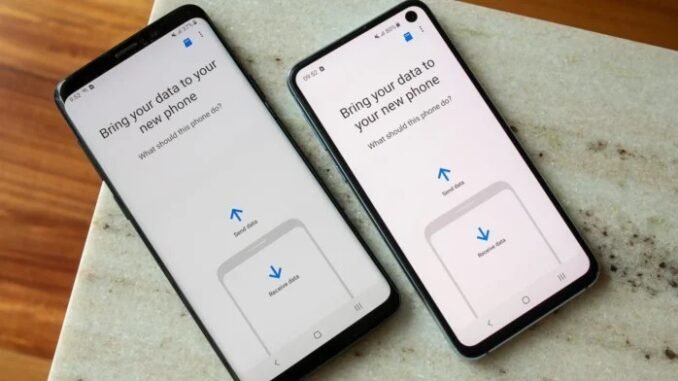
During setup, Android offers Copy apps and data from your old phone. A USB-C to USB-C cable is fastest and most reliable, it copies apps, photos, messages, and settings directly. No cable? The wireless option works over Wi-Fi, just slower. Samsung Smart Switch (free, preinstalled on Galaxy phones) is even better for Samsung-to-Samsung moves and handles things like home screen layout and Samsung Notes.
iPhone to Android: Move to iOS in reverse with Google
- On the new Android, during setup, choose to copy data from an iPhone.
- Connect the phones with a cable (Lightning/USB-C to USB-C) when prompted, or use the wireless option.
- Photos, videos, messages, contacts, and most free apps transfer. Paid apps need repurchasing, that is the one real sting of switching platforms.
- Turn off iMessage on the old iPhone first (Settings > Messages), or your texts will keep going to the old phone. This is the number one “my texts are broken” cause after switching, and Apple has a deregistration page if you already wiped the iPhone.
Android to iPhone: Apple’s Move to iOS app
Install Move to iOS from the Google Play Store on your Android. During iPhone setup, choose “Move Data from Android,” enter the code shown on the iPhone, and select what to transfer. It handles contacts, messages, photos, and free apps well. WhatsApp chats need their own in-app transfer, start that before wiping.
What Transfers Automatically (and What Does Not)
- Transfers easily: Photos, videos, contacts, text messages, call history, apps themselves, Wi-Fi passwords, wallpapers.
- Usually transfers: App login sessions (iPhone-to-iPhone is best at this), music files, documents.
- Does NOT transfer: Authenticator app codes (export these manually first, losing them can lock you out of accounts), some banking app data, downloaded Netflix/Spotify content (redownload), and anything in apps that explicitly block backups.
- Special cases: WhatsApp has its own chat transfer in Settings > Chats. Move it before anything else if your chat history matters to you.
The Verification Checklist (Do Not Skip This)
Before you factory-reset the old phone, spend ten minutes confirming:
- Open Photos on the new phone. Scroll to the oldest photos. Are they all there? Compare the total count with the old phone.
- Open your messaging app and check a few old conversations.
- Open your authenticator app and confirm codes are present and working.
- Make a test call and send a test text.
- Check that banking and payment apps open and log in.
- Confirm contacts count matches.
Only after every box is checked should you wipe the old device. I once watched a friend skip this and lose two years of WhatsApp history. Ten minutes of checking beats that regret.
Transferring Specific File Types Manually
Sometimes you just need a few files, not a whole migration. Photos/videos: Google Photos or iCloud shared albums work cross-platform. Documents: Google Drive, iCloud Drive, or Dropbox. Music: copy MP3s to a computer, then to the new phone, or just re-download from your streaming service. Nearby Share (Android) and AirDrop (iPhone) handle quick phone-to-phone file drops beautifully when both devices are the same platform.
The Bottom Line
Transferring files from an old phone to a new one is mostly a solved problem: use Quick Start for iPhone-to-iPhone, a cable copy for Android-to-Android, and the platform switcher apps when crossing over. Move your authenticator codes and WhatsApp chats manually, verify everything before wiping the old phone, and the whole upgrade feels like nothing changed except the hardware, which is exactly how it should be.
Common Questions, Answered
Will my apps transfer automatically to the new phone?
Yes, mostly. Both iPhone Quick Start and Android’s copy process reinstall your apps automatically. Free apps transfer seamlessly. Paid apps transfer within the same platform (your purchase history carries over), but switching between iPhone and Android means repurchasing paid apps. Either way, you will need to log into most apps again on the new phone.
How long does a full phone transfer take?
Anywhere from 30 minutes to 3 hours depending on how much data you have. A 256GB phone nearly full of photos and videos takes considerably longer than a lightly used 128GB phone. Start the transfer when you do not need either phone, keep both plugged into power, and let it run. Do not interrupt it midway.
Do text messages transfer to the new phone?
Yes on same-platform transfers: iPhone to iPhone via Quick Start or iCloud backup, Android to Android via the copy process or Google One backup. Cross-platform transfers move SMS messages too (Move to iOS and Android’s iPhone import both handle texts), though RCS chats and some message attachments can be finicky.
What should I do with my old phone after transferring?
Once you have verified everything on the new phone, factory-reset the old one after signing out of iCloud or Google. Then sell it (Swappa and eBay pay best), trade it in, hand it down to a family member, or keep it as a backup. Even a three-year-old phone makes an excellent dedicated music player, security camera, or kids’ device.
Leave a Reply