
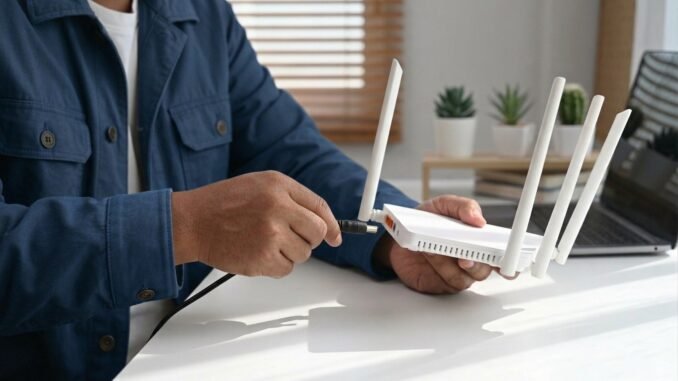
When the internet dies mid-Zoom-call, knowing how do I reset my router to fix internet connection problems is a genuine life skill. I have walked dozens of friends and family members through this over the phone, and here is the thing most people get wrong: there are two completely different kinds of “reset,” and using the wrong one causes more problems than it solves.
Let us do this in the right order, from the quick fix that solves 80 percent of problems to the nuclear option you use when nothing else works.
How Do I Reset My Router to Fix Internet Connection Problems? The Two-Minute Fix First
What most people actually need is a restart (also called a power cycle), not a reset. This clears glitches without erasing any settings. Do it exactly like this:
- Unplug both your modem and your router from power. If you have a combined modem-router unit from your ISP, just unplug that one box.
- Wait a full 30 seconds. Not five. Routers have capacitors that hold a charge, and a too-short unplug does nothing. Count it out.
- Plug the modem back in first. Wait until its lights stabilize, usually the “Online” or “Internet” light goes solid. This takes one to three minutes. Be patient.
- Now plug in the router. Give it another one to two minutes to boot and reconnect to the modem.
- Test your connection. The order matters because the router needs the modem’s connection to be ready before it tries to use it.
This fixes the majority of “internet randomly stopped working” situations: memory leaks, hung processes, stale DHCP leases, and confused routing tables all clear with a proper power cycle. I do this proactively once a month, and my network is noticeably more stable for it.
When a Restart Is Not Enough: The Factory Reset
A factory reset erases everything and returns the router to out-of-the-box settings: default Wi-Fi name, default password, default admin login. Only do this when:
- You cannot log into the router’s admin page and do not know the password.
- The router is behaving bizarrely even after restarts (dropping connections every few minutes, admin page unreachable).
- You bought a used router and want a clean slate.
- A firmware update went wrong and bricked the settings.
How to factory reset safely
- Write down your settings first. Your Wi-Fi name and password, ISP login credentials (PPPoE username/password if your ISP uses them), and any port-forwarding or custom DNS settings. Take phone photos of every settings page. You will thank yourself.
- Find the reset button, usually a tiny recessed hole on the back labeled Reset. You will need a paperclip.
- With the router powered on, press and hold the button for 10 to 30 seconds (check your manual; holding too briefly just reboots). The lights will flash or the router will reboot.
- Wait for it to fully boot, then connect to the default Wi-Fi network (name and password are on the router’s sticker).
- Log into the admin page (usually 192.168.1.1 or 192.168.0.1, credentials on the sticker) and reconfigure: set a new admin password first, then your Wi-Fi name and password, then restore any custom settings.
Do Not Forget the Modem
About a third of “router problems” are actually modem problems. If your modem’s Online/Internet light is off or blinking after a proper power cycle, the issue is between your home and your ISP, no amount of router resetting will fix it. That is a call-your-ISP situation: ask them to check your line signal and whether there is an outage in your area. Also, if you rent your modem, ask how old it is. ISPs quietly keep renting out outdated modems that cannot deliver modern plan speeds.
Problems a Reset Will Not Fix
- Slow speeds on your plan: A reset will not make a 100 Mbps plan deliver 300 Mbps. Check speedtest.net next to the router; if it matches your plan, your plan is the limit.
- Dead zones in a big house: That is a coverage problem. No reset fixes physics, you need a mesh system or access point.
- ISP outages: Check your ISP’s outage map or DownDetector before resetting anything for the third time.
- Too many devices: A five-year-old router choking on 30 smart devices needs replacing, not resetting.
Preventing Future Connection Problems
- Update firmware regularly. Check quarterly in the router’s admin page or app. Updates fix bugs that cause exactly these dropouts.
- Give the router breathing room. Overheating causes random reboots and drops. Keep it ventilated, not stacked under a pile of papers.
- Use a UPS or surge protector. Power flickers corrupt router settings more often than people realize. A $40 UPS prevents a whole category of weirdness.
- Schedule automatic reboots. Many routers (ASUS, TP-Link, and others) can auto-reboot weekly at 3 AM. Set it and forget it.
The Bottom Line
To reset your router and fix internet connection problems, start with a proper 30-second power cycle of modem first, then router, which resolves most issues in minutes. Save the factory reset for when you are locked out or the router is genuinely misbehaving, and document your settings before you do it. And if the modem’s online light will not stabilize, stop resetting and call your ISP, because that problem lives outside your walls.
Common Questions, Answered
How often should I restart my router?
Once a month is a good preventive rhythm for most homes. If you are restarting weekly just to keep things working, treat that as a symptom: update the firmware, check for overheating, or consider that the router may be underpowered for your device count or simply aging out. Constant restarts are the router asking for retirement. For persistent connection issues, the FCC’s consumer broadband guides explain how to document problems for your ISP.
Will resetting my router change my Wi-Fi password?
A simple restart (power cycle) changes nothing; all settings stay intact. A factory reset erases everything including your Wi-Fi name and password, restoring the defaults printed on the router’s sticker. This is why the guide recommends the power cycle first and the factory reset only when necessary, with settings documented beforehand.
My internet works but is very slow after a reset. What now?
Give it 10 to 15 minutes; routers and modems sometimes take a while to fully renegotiate connections and update. Then run a speed test next to the router. If speeds are still far below your plan, the problem is likely your line or ISP equipment, not your settings, and it is time to call your provider with those test results in hand.
Should I reset my modem and router at the same time?
Power them both off, but power them back on in sequence: modem first, wait for its lights to stabilize, then the router. The router needs the modem’s connection established before it boots its own network services. Doing both simultaneously often works, but the sequenced approach eliminates a whole category of “it came back but nothing connects” headaches.
Leave a Reply