
Learning how do I block spam texts on an Android phone has become essential because spam texts exploded in recent years, everything from fake package deliveries to “wrong number” scams that turn into pig-butchering fraud. I went from multiple spam texts daily to almost none using the layered approach below. It takes about ten minutes to set up, and most of it is free.
How Do I Block Spam Texts on an Android Phone? Start With Built-In Protection
Google Messages spam protection
If you use Google Messages (the default on Pixels and most Android phones now):
- Open Messages > tap your profile picture > Messages settings > Spam protection and turn it on.
- This automatically filters suspected spam into a separate folder using on-device detection plus Google’s spam database.
- Periodically check Spam & blocked folder for false positives, legitimate messages occasionally land there.
Samsung Messages
On Samsung’s app: Messages > Settings > Block numbers and spam > Block spam and scam calls. Samsung’s Smart Call database identifies many spam text senders too. Honestly, I recommend switching to Google Messages even on Samsung phones, its spam filtering is noticeably better.
Block and Report Individual Spammers
For texts that slip through:
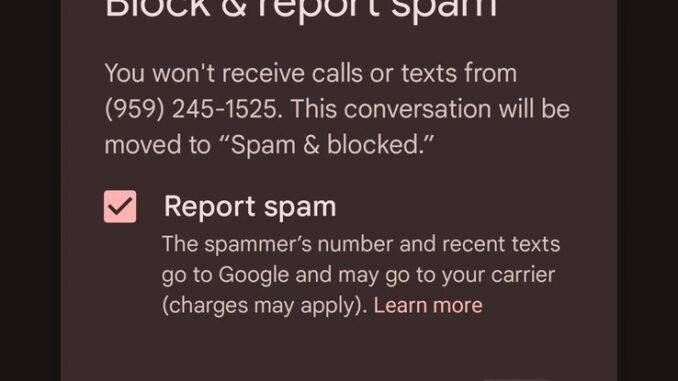
- Long-press the conversation > Block > check “Report spam” > OK. This blocks the number and sends the spam signature to Google’s database, helping everyone.
- Forward to 7726 (SPAM). Forward the spam text to 7726, which spells SPAM on your keypad. All major US carriers operate this, and it feeds their network-level filters. Takes five seconds and genuinely helps.
- Never reply, not even “STOP.” Legitimate companies honor STOP, but scammers treat any reply as proof your number is live, which invites more spam. For unknown senders, silence is the answer.
Carrier-Level Spam Text Blocking
Your carrier filters spam before it reaches you, but you may need to activate it:
- T-Mobile: Scam Shield app, free Scam Block and anti-spoofing. T-Mobile has been the most aggressive carrier against spam texts.
- AT&T: ActiveArmor app with free spam text filtering.
- Verizon: Call Filter app; basic spam protection free.
- All carriers now implement STIR/SHAKEN call authentication, and similar sender-verification for texts is rolling out. It is not perfect, but verified-sender labels (“Verified” checkmarks on business texts) help you trust legitimate messages.
Recognize the Scams (So You Never Fall for Them)
- “Your package could not be delivered”: With a link to “reschedule.” USPS, FedEx, and UPS do not text links like this out of the blue. The number one spam text in America.
- “Hi, is this [name]? Wrong number…” that turns chatty: The opening move of pig-butchering investment scams. Block immediately.
- Bank fraud alerts with links: Real banks text alerts but tell you to open the app yourself, never click texted links. When in doubt, call the number on your card.
- “You won!” / free gift cards: Always fake. Always.
- Political donation texts: Annoying but legal. Reply STOP to these, they are from real campaigns and must honor opt-outs. To reduce them generally, do not donate via text links that add you to lists.
The FTC is blunt about it: unexpected texts with links are guilty until proven innocent. I treat every unexpected text link as hostile, and I have never been wrong.
Advanced: Lock Down Further
- Disable message previews on your lock screen (Settings > Notifications) so smishing texts are not readable by shoulder-surfers.
- Turn off “auto-download MMS” to prevent malicious media from loading automatically.
- Consider a secondary number (Google Voice, free) for online shopping, signups, and selling things. Spam hits the burner number, not your real one. This is the single most effective long-term strategy I know.
- Do not post your number publicly on social media, marketplaces (use the platform’s relay), or forums.
What About Third-Party Blocker Apps?
Apps like RoboKiller and Truecaller offer text filtering, but Android’s built-in tools plus carrier filtering handle most of it now. Truecaller’s community spam database is genuinely useful as a supplement, and its free tier is decent. I would only pay for a third-party app if you are still getting hammered after setting up everything above.
The Bottom Line
To block spam texts on Android, enable spam protection in Google Messages, activate your carrier’s free filtering, forward spam to 7726, and never reply to unknown senders. Learn the top scam patterns so recognition becomes automatic, and consider a free Google Voice number as a spam shield for signups. Layer these together and spam texts go from daily annoyance to rare exception.
Quick Answers to Common Questions
Why am I suddenly getting more spam texts?
Data breaches constantly feed fresh phone numbers to spammers, and your number may have appeared in a recent leak. Number recycling (getting a previously spammed number) and signing up for services that sell data also contribute. Check Have I Been Pwned for your associated email to see recent breaches, enable all the blocking layers in this guide, and consider a Google Voice number for future signups.
Is it safe to click STOP to unsubscribe from spam texts?
Only for legitimate businesses you recognize (your bank, a store you shop at, political campaigns you engaged with). For unknown senders, any reply, including STOP, confirms your number is live and invites more spam. The rule: STOP for the known, silence for the unknown. When in doubt, treat it as unknown.
Can spam texts install malware on my Android?
The text itself cannot, but links in texts can lead to malicious downloads or phishing pages designed to steal credentials. Android’s protections are strong against drive-by infection from texts alone. The real danger is social engineering: convincing you to install a “package tracker” app or enter banking details on a fake site. Never install apps from text links; use the Play Store.
Do spam blocker apps drain battery?
Minimal impact from reputable ones. Built-in Google Messages filtering runs efficiently on-device, and carrier apps are lightweight. If you notice significant drain after installing a third-party blocker, check its background permissions; some free blockers are ad-supported and behave badly. Stick to the built-in tools plus carrier filtering, which is all most people need.
Leave a Reply