
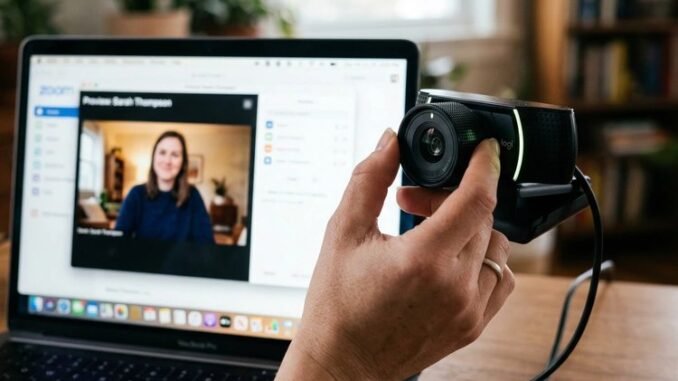
Learning how do I fix a blurry webcam before video calls is urgent-call energy: you have three minutes before the meeting and you look like a watercolor painting. I have troubleshooted this exact panic many times, and the fix is almost always embarrassingly simple. Work through this list in order, from the 10-second fixes to the deeper ones.
How Do I Fix a Blurry Webcam Before Video Calls? The 60-Second Fixes
- Clean the lens. The number one cause of blurry webcams is a smudged lens, fingerprints, dust, mystery grime. Wipe gently with a microfiber cloth (the glasses-cleaning kind). Do not use your shirt; it just smears oils around. This single step fixes probably half of all blurry webcam complaints.
- Remove the plastic film. New laptops ship with a tiny protective film over the webcam that people forget to remove. Check for it, it causes a permanent soft-focus effect.
- Check for a privacy shutter. Many laptops (ThinkPads especially) have a physical sliding shutter. If it is half-closed, you get a blurry partial image. Slide it fully open.
- Peel off the sticker. If you covered the camera with tape or a sticker for privacy (smart), make sure it is fully removed, not half-peeled.
Lighting: The Real Secret to Sharp Video
Here is what most people miss: webcams go blurry in low light because they slow the shutter and crank up digital noise reduction, which smears detail. Your camera might be fine; your lighting is the problem.
- Face a window. Natural light on your face is the single best video upgrade, free. Sit facing the window, not with it behind you (backlighting turns you into a silhouette).
- Add a light source in front of you. A $20-$30 ring light or even a desk lamp aimed at your face (not the screen) transforms image quality. Position it slightly above eye level.
- Reduce backlight. Close blinds behind you or move so bright windows are not directly behind your head.
- Overhead lighting alone is the worst. It casts shadows and forces the camera to overcompensate. Always add frontal light.
I have seen $30 webcams with good lighting outperform $200 webcams in bad lighting. Light first, hardware second.
Software and Settings Fixes
- Close other camera apps. Only one app can properly control the camera at a time. Close Zoom before opening Teams, and vice versa.
- Check resolution settings. In Zoom: Settings > Video > enable HD and “Touch up my appearance” off (it softens). In Teams: Settings > Devices, check camera. Some apps default to 360p to save bandwidth.
- Turn off “beauty filters.” Zoom, Teams, and phone apps all have smoothing filters that blur by design. Disable them for sharpness.
- Update camera drivers (Windows: Device Manager > Cameras > Update driver) and your video app itself.
- Check bandwidth. If your connection is slow, apps auto-reduce video quality. Plug into ethernet or move closer to the router during important calls.
- Disable VPN during calls if video is struggling; VPNs add latency and can trigger quality reduction.
- Restart the app. Camera pipelines glitch. A fresh launch fixes mysterious quality drops surprisingly often.
Focus Problems (Autofocus Hunting)
If the image pulses between sharp and blurry, the autofocus is hunting:
- Increase distance. Sit at least 2 feet from the camera. Too close overwhelms laptop autofocus.
- Reduce background clutter. Busy backgrounds behind you confuse focus algorithms. A plain wall is ideal.
- Hold still during focus lock. Wave a hand in front of the camera once, then sit still; many webcams lock focus after initial detection.
- External webcams: If yours has manual focus (Logitech C920 and similar), set it once and leave it.
When the Built-In Webcam Is Just Bad
Let us be honest: most built-in laptop webcams are 720p sensors that were mediocre five years ago. If you are on video calls daily for work, an external webcam is the highest-ROI upgrade in your home office:
- Budget: Logitech C920s (~$70). 1080p, autofocus, the longtime standard. Massive upgrade over any built-in.
- Mid-range: Anker PowerConf C200 (~$60) or Logitech Brio 500 (~$130). Better low-light performance and framing features.
- Use your phone instead: iPhone as webcam (Continuity Camera, macOS Ventura+) or Android via apps like DroidCam. Modern phone cameras demolish laptop webcams. Free if you own a phone stand.
- Positioning: Whatever camera you use, put it at eye level. Stack the laptop on books. The up-the-nose angle is unflattering on everyone.
The Pre-Call Checklist (2 Minutes)
- Wipe the lens with microfiber.
- Face a window or turn on a frontal light.
- Camera at eye level.
- Open the app’s video preview and check sharpness.
- Close bandwidth hogs (cloud backups, streaming).
The Bottom Line
To fix a blurry webcam before video calls: clean the lens with a microfiber cloth, remove any film or shutter obstruction, and improve frontal lighting, which alone resolves most “blurry” complaints. Then check app resolution settings, disable beauty filters, and ensure decent bandwidth. If your built-in camera is chronically bad, a $60-$70 external webcam or your phone as a camera is a transformative upgrade. Do the two-minute pre-call checklist and never be the blurry rectangle again.
Quick Answers to Common Questions
Why is my webcam blurry only in Zoom but fine elsewhere?
Zoom may be defaulting to a lower resolution to save bandwidth, or its beauty filter (“Touch up my appearance”) is enabled. Check Zoom Settings, Video: enable HD, disable touch-up, and ensure no virtual background is smearing edges (virtual backgrounds without a green screen soften the whole image). Also verify Zoom is not competing with another app for camera control.
Should I buy a 4K webcam?
For most people, no. Video conferencing apps compress streams to 720p or 1080p regardless, so a 4K sensor’s extra resolution never reaches the other participants. What matters more: sensor size (better low light), autofocus quality, and field of view. A good 1080p webcam like the Logitech Brio 500 outperforms a cheap 4K webcam in real calls. Spend on lighting before resolution.
How do I look better on video calls beyond camera quality?
Camera at eye level (stack the laptop), face a window or add a frontal light, clean background or subtle blur, and sit 2-3 feet back so your head and shoulders frame naturally. Look into the camera lens when speaking, not at faces on screen; it simulates eye contact. These presentation basics matter more than any camera upgrade.
Can I use my phone as a webcam instead of buying one?
Yes, and it is often the best option. iPhones work as Mac webcams via Continuity Camera (wireless, automatic on recent macOS), and apps like DroidCam or EpocCam connect Android phones and iPhones to Windows. Phone cameras vastly outperform laptop webcams. You need a way to mount the phone at eye level; a $15 tripod or stack of books works fine. For app-specific tweaks, see Zoom’s support center.
Leave a Reply