
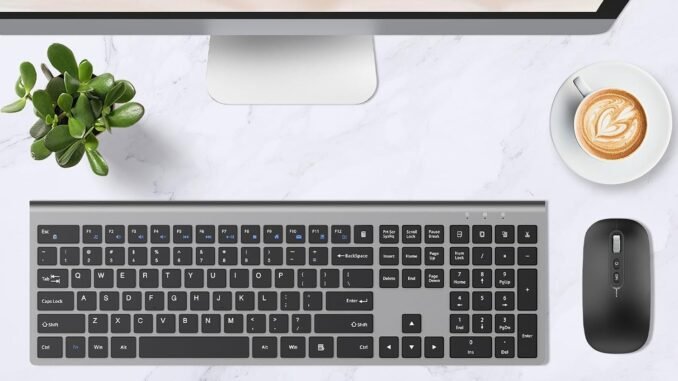
Asking what is the best keyboard and mouse combo for working from home might sound like a small decision until your wrist starts aching at 3 PM every day. I work from home full-time and have cycled through a lot of peripherals. The difference between a $25 keyboard-mouse bundle and a thoughtful $100 setup is not luxury, it is the difference between comfort and chronic pain over thousands of hours of typing.
What Is the Best Keyboard and Mouse Combo for Working From Home? Top Picks
- Best overall: Logitech MK850 Performance — ~$80. Full-size keyboard with comfortable quiet keys, a genuinely excellent ergonomic mouse, multi-device switching for up to 3 devices, and 2-year battery life. This is the default recommendation for a reason: it just works, all day, for years.
- Best ergonomic: Logitech Ergo K860 + Lift mouse — ~$200 together. The split curved keyboard looks odd for exactly one day, then your shoulders and wrists thank you forever. If you type 6+ hours daily or have any wrist discomfort, this is the investment that matters most on this list.
- Best budget: Logitech MK270 — ~$25. Shockingly decent for the price. Full-size keyboard, compact wireless mouse, reliable connection. Perfect for a secondary setup or tight budgets. Replace yearly without guilt.
- Best premium: Keychron K3 + Logitech MX Master 3S — ~$200 together. For people who type for a living and care: the Keychron’s mechanical low-profile keys are a joy, and the MX Master 3S is simply the best productivity mouse ever made, with its infinite scroll wheel and thumb gestures.
- Best for small desks: Microsoft Bluetooth Compact combo / Logitech K380 + Pebble — ~$60. Space-saving without feeling cramped, and both pair with tablets and phones too.
What Actually Matters (Beyond Brand Names)
- Ergonomics beats everything. Wrist pain, carpal tunnel, and shoulder tension come from bad ergonomics compounded over years. A split or curved keyboard and a mouse that fits your hand size are health equipment, not accessories. If you feel tingling or aching, upgrade immediately, do not “push through.”
- Mouse size and grip. Hands come in sizes; mice do too. Palm-grip users need larger mice (MX Master), claw-grip users do better with medium ones. A mouse that is too small causes cramping within hours. If possible, try before buying, or buy from somewhere with easy returns.
- Quiet keys for calls. Mechanical keyboards sound great to you and terrible to everyone on your Zoom call. For shared spaces or frequent calls, choose quiet membrane or silent-switch keyboards.
- Multi-device switching. If you work across a laptop, desktop, and tablet, one-button device switching (Logitech’s Easy-Switch, for example) is a daily quality-of-life win.
- Wireless vs. wired: Modern 2.4GHz wireless (Logitech Bolt/Unifying) is lag-free and reliable. Bluetooth works but can have wake-from-sleep delays. Either is fine; just avoid no-name wireless with input lag.
The Ergonomic Setup Checklist
The peripherals are only half the equation. Set them up right:
- Keyboard at elbow height, wrists straight and floating, not bent up or resting on hard desk edges.
- Mouse at the same level, close to your body. Reaching forward for the mouse all day wrecks shoulders.
- Top of monitor at eye level, about an arm’s length away. Stack it on books if needed, the classic free fix.
- Consider a wrist rest ($15-$20) for the keyboard, but rest your palms on it during pauses, not while typing.
- Take micro-breaks. No peripheral fixes 8 unbroken hours. Stand, stretch, and shake out your hands every hour.
Combos to Avoid
- Ultra-thin “designer” keyboards with zero key travel. They look sleek and feel terrible after an hour.
- Tiny travel mice as daily drivers. Fine for trips, cramp-inducing as a primary mouse.
- Gaming combos for office work. Loud clicky switches, aggressive styling, and features you will never use, while ergonomics get ignored.
- No-name $15 wireless sets with laggy, dropout-prone connections. The MK270 proves decent budget options exist; do not go cheaper than that.
The Bottom Line
The best keyboard and mouse combo for working from home is the Logitech MK850 (~$80) for most people, the Ergo K860 + Lift (~$200) if you type all day or feel any wrist strain, and the MK270 (~$25) on a tight budget. Prioritize ergonomics and fit over features, set your desk height correctly, and treat wrist pain as an urgent upgrade signal, not something to tolerate. Your hands have to last your whole career.
Common Questions, Answered
Are ergonomic keyboards hard to get used to?
The split layout feels strange for about two to three days, then becomes invisible. Most users report their typing speed recovers fully within a week and comfort improves immediately. The curved (non-split) ergonomic boards like the Logitech Wave have essentially zero learning curve. If you type for a living and have any wrist discomfort, the brief adjustment period is among the best investments you can make.
Should I get a vertical mouse?
Vertical mice (like the Logitech Lift Vertical) put your hand in a neutral “handshake” position that reduces forearm strain. They help significantly with wrist and forearm pain, though the learning curve is longer than ergonomic keyboards, typically one to two weeks. Try one if you have persistent wrist issues; for general comfort without pain, a well-fitted standard ergonomic mouse suffices.
Is a mechanical keyboard better for office work?
For typing feel, many people prefer them, but for shared spaces and video calls, their noise is a real problem. Low-profile mechanical keyboards (Keychron K3) or silent switches offer a middle ground. Honestly, for pure productivity, a quality quiet membrane keyboard like the Logitech MX Keys is the safer office choice; save the clicky mechanicals for solo work.
How much should I spend on a keyboard and mouse?
The $80 Logitech MK850 tier hits the sweet spot for most home workers: genuine comfort and reliability without premium pricing. Spend $150-$200+ only if you type 6+ hours daily (ergonomic models) or have specific needs (mechanical feel, premium mouse features). Below $25, you are buying disposables. Your hands deserve the $80 tier at minimum. For workstation setup basics, see OSHA’s ergonomics guidance.
Leave a Reply