
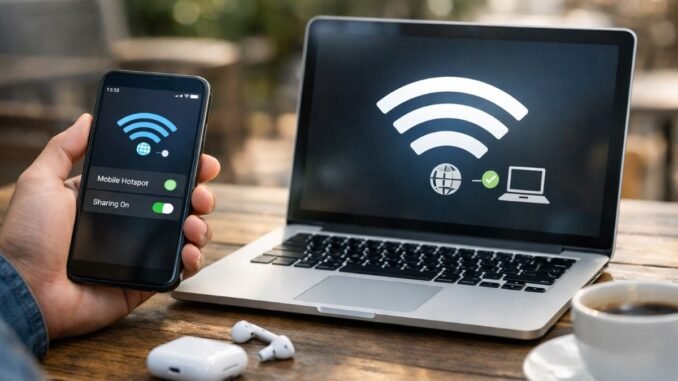
Knowing how do I use my phone as a hotspot for my laptop turns your phone into internet-anywhere, and it has saved me during power outages, airport layovers, hotel Wi-Fi disasters, and one memorable coffee shop with a “temporarily down” sign. Setup takes about a minute, and with 5G, hotspot speeds now genuinely rival home internet for most tasks.
How Do I Use My Phone as a Hotspot for My Laptop? iPhone Setup
- Go to Settings > Personal Hotspot and toggle Allow Others to Join on.
- Note the Wi-Fi password shown. Change it to something strong if it is still the default.
- On your laptop, open Wi-Fi settings, select your iPhone’s name, and enter the password.
- Faster method: If both devices use the same Apple ID, your iPhone appears automatically in the laptop’s Wi-Fi menu (Mac) without typing anything. Just click it.
- For maximum speed and minimum battery drain, connect via USB cable instead: plug the iPhone into the laptop, and select iPhone in the network settings. This is my preferred method for long work sessions.
Android Setup
- Go to Settings > Network & internet > Hotspot & tethering (wording varies: Samsung uses Connections > Mobile Hotspot and Tethering).
- Turn on Wi-Fi hotspot.
- Tap the hotspot name to set your network name and password. Use WPA3 or WPA2 security, never leave it open.
- On your laptop, connect to the hotspot name like any Wi-Fi network.
- USB tethering (same menu) via cable is faster and charges your phone simultaneously. Bluetooth tethering exists too but is slow, only for emergencies.
Check Your Plan Before You Rely on This
This is the gotcha: hotspot data is often separate from your regular data. Many “unlimited” plans include only 5-40GB of high-speed hotspot data monthly, then throttle to unusable 600 Kbps speeds. Check your plan details:
- T-Mobile: Most unlimited plans include 40GB+ hotspot; Go5G Plus offers 50GB.
- Verizon: Varies widely by plan; premium plans include 50GB, basic ones as little as 5GB.
- AT&T: Similar tiering; check your specific plan.
- MVNOs (Mint, Cricket, Visible): Often include modest hotspot allowances; Visible’s base plan historically offered unlimited hotspot at capped speeds.
Monitor usage: iPhone Settings > Cellular shows hotspot data per device; Android shows it under Hotspot settings. One Zoom-heavy workday can eat 2-4GB, so the math matters.
Speed Tips: Make Hotspot Actually Fast
- Use 5G if available. Mid-band 5G hotspots deliver 100-300 Mbps, genuinely replacing home internet for a day.
- USB tether instead of Wi-Fi for the fastest, most stable connection and zero phone battery drain.
- Keep the phone plugged in. Hotspot is brutal on battery; a phone at 20% will throttle performance to save itself.
- Place the phone near a window for the best cellular signal. One bar of signal means one bar of hotspot speed.
- Set your laptop connection as “metered” (Windows: Wi-Fi settings > Metered connection ON; Mac: Low Data Mode). This stops Windows Update and cloud backups from devouring your hotspot data in the background.
- Close cloud sync apps (Dropbox, OneDrive, Google Drive) and pause auto-updates while on hotspot.
Hotspot Troubleshooting
- Laptop cannot see the hotspot: Toggle hotspot off and on; toggle airplane mode on the phone for 10 seconds; restart both devices.
- Connected but no internet: Check the phone itself has data (open a webpage on the phone). Toggle mobile data off/on. Some carriers require the correct APN settings, call them if it never works.
- “Hotspot not allowed” message: Your plan may not include tethering, or the carrier is blocking it. Call to add the feature or switch plans.
- Slow speeds: Check signal strength, move the phone, switch to USB tethering, and confirm you have not hit your hotspot data cap (throttled speeds feel broken).
- Phone overheating: Normal during heavy hotspot use, but move it out of direct sunlight and remove thick cases. If it gets painfully hot, give it a break.
When Hotspot Makes Sense (and When It Does Not)
- Perfect for: Travel, outages, working from parks or cafes, backup internet during ISP problems, anywhere for a few hours.
- Not ideal for: Permanent home internet replacement (data caps make this expensive unless your plan truly allows it), 4K streaming marathons (eats 7GB/hour), or households with multiple heavy users.
- Dedicated hotspot devices ($50-$200 + data plan) make sense only for full-time travelers or RVers; for everyone else, the phone in your pocket wins.
The Bottom Line
Using your phone as a hotspot for your laptop takes one minute: enable Personal Hotspot (iPhone) or Wi-Fi hotspot (Android), connect from the laptop, and preferably USB-tether for long sessions. Check your plan’s hotspot allowance before leaning on it, set the laptop connection as metered to protect your data, and keep the phone charged and near a window. It is the most underused superpower your phone has.
Frequently Asked Questions
How much data does hotspot use for a workday?
A typical remote workday consumes 2 to 4GB: video calls use roughly 1-1.5GB per hour, while email, documents, and browsing add modest amounts. A full day of back-to-back Zoom calls can hit 6-8GB. Streaming video or large downloads on hotspot will devour allowances fast; a single 4K movie is 7GB. Monitor usage in your phone’s hotspot settings and set your laptop connection as metered to block background data hogs.
Can I use hotspot while traveling internationally?
Technically yes, but international roaming data rates make it ruinously expensive on most US plans ($10/day or per-MB charges). The smart move abroad is a local eSIM with generous data (Airalo, Holafly) used as your hotspot source, often $20-$30 for ample data. Alternatively, many international plans from T-Mobile include free low-speed data abroad, usable for light hotspot needs.
Why does my hotspot keep turning off by itself?
Phones auto-disable hotspots to save battery, typically after 5-15 minutes with no connected devices or when battery drops critically low. Check your hotspot settings for timeout options and extend them. Keeping the phone plugged in prevents battery-triggered shutdowns. Some phones also disable hotspot during software updates or when switching between Wi-Fi and cellular.
Is USB tethering faster than Wi-Fi hotspot?
Yes, measurably. USB tethering eliminates Wi-Fi overhead and interference, delivering the phone’s full cellular speed to the laptop while simultaneously charging the phone. In speed tests, USB tethering typically runs 10-20% faster than Wi-Fi hotspot from the same phone in the same location. For long work sessions, it is the superior option in every way except convenience. Check your plan’s hotspot allowance against the FCC’s mobile broadband resources for context on typical speeds.
Leave a Reply