
Learning how do I connect my printer to Wi-Fi for wireless printing is one of those ten-minute tasks that pays off every single day afterward. No more hunting for the USB cable, no more emailing documents to yourself to print from one specific computer. Once your printer is on Wi-Fi, every phone, laptop, and tablet in the house can print to it, and I honestly do not know why anyone still prints any other way.
The exact steps vary by brand, but every method below works on virtually all Wi-Fi printers sold in the last decade.
How Do I Connect My Printer to Wi-Fi for Wireless Printing? Method 1: WPS (Fastest)
If your router has a WPS button (most do, check the back or side), this takes about two minutes:
- On the printer, press and hold the Wi-Fi button until the wireless light starts blinking. (On printers with a touchscreen: Settings > Network/Wireless > WPS or Wi-Fi Setup.)
- Within two minutes, press the WPS button on your router.
- Wait. The printer’s wireless light goes solid when connected. Done.
That is genuinely it. No passwords to type, no apps to install. If your printer and router both support WPS, always try this first.
Method 2: Printer Touchscreen Setup
Most modern printers (HP, Canon, Epson, Brother) have a touchscreen or small display:
- On the printer, go to Settings > Network Settings > Wireless Setup Wizard (wording varies slightly by brand).
- The printer scans and lists nearby Wi-Fi networks. Select yours.
- Enter your Wi-Fi password carefully, this is where most failures happen. Watch for capital letters and special characters.
- Confirm, wait for the “connected” message, and print a network configuration page to verify (usually an option right in the network menu).
Brand-specific shortcuts
- HP: Many HP printers support Wi-Fi Direct out of the box, and the free HP Smart app walks you through setup with pictures. It is genuinely the easiest printer setup in the industry.
- Canon: The Canon PRINT app handles wireless setup and lets you print straight from your phone.
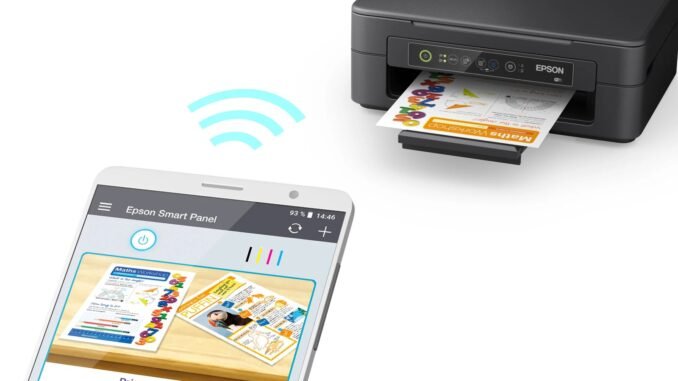
- Epson: Look for the Wi-Fi button method above, or use the Epson Smart Panel app.
- Brother: Setup Wizard under Network on the control panel; Brother’s mobile app (Mobile Connect) is solid too.
Method 3: USB Setup, Then Go Wireless
For printers with no screen at all (many budget lasers): connect the printer to your computer with a USB cable temporarily, install the manufacturer’s software, and use the wireless setup option inside that software to transfer your Wi-Fi credentials to the printer. Unplug the USB cable afterward. Clunky, but it works every time.
Printing From Your Phone Once Connected
- iPhone/iPad: Just tap Share > Print in any app. AirPrint finds Wi-Fi printers automatically with zero setup. If your printer is old enough to lack AirPrint, the manufacturer’s app bridges the gap.
- Android: Most Android phones print via the Default Print Service (Settings > Connected devices > Printing). Manufacturer apps from HP, Canon, Epson, and Brother add extra features.
- Chromebook/Windows/Mac: Add the printer in system settings; modern OS versions detect network printers automatically.
Troubleshooting: When It Will Not Connect
- 2.4 GHz vs. 5 GHz: Many printers only support 2.4 GHz Wi-Fi. If your router uses one combined network name, temporarily check that 2.4 GHz is enabled, or move the printer closer during setup. This single issue causes most “printer won’t connect” headaches.
- Wrong password: Re-enter it slowly. Printer touchscreens are fiddly, and one wrong character fails silently.
- Too far from the router: Printers often live in closets and corners where signal is weak. Temporarily move it near the router for setup, then move it back.
- Restart everything: Printer, router, and the device you are printing from, in that order.
- Update printer firmware: Available through the manufacturer’s app or support site; fixes a surprising number of connectivity bugs.
- Assign a static IP: If the printer “disappears” every few weeks, give it a fixed IP address in your router settings. This is the permanent fix for vanishing printers.
A Note on Printer Ink Costs
Since you are setting up a printer anyway: if you print more than a few pages a month, look into ink subscription services like HP Instant Ink (from $1.99/month) or Epson EcoTank printers, whose refillable tanks cut per-page costs to a fraction of cartridge printing. Standard cartridges remain one of the worst deals in consumer tech, often costing more per ounce than champagne.
The Bottom Line
Connecting your printer to Wi-Fi comes down to WPS if your router supports it, the wireless setup wizard on the printer’s screen otherwise, and remembering that most printers need the 2.4 GHz band. Once connected, AirPrint and Android’s print service make phone printing effortless. Ten minutes of setup, years of never hunting for a USB cable again.
Common Questions, Answered
Why does my printer keep disconnecting from Wi-Fi?
The most common cause is the printer’s IP address changing when the router reboots, which confuses your devices. The permanent fix is assigning the printer a static (reserved) IP address in your router’s settings, tied to the printer’s MAC address. This five-minute fix ends the maddening cycle of printers that vanish every few weeks.
Can I print from my phone without the manufacturer’s app?
On iPhone, yes: AirPrint works directly from the Share menu with no app needed, as long as the printer supports it (most Wi-Fi printers from the last decade do). On Android, the built-in Default Print Service handles most printers without extra apps. Manufacturer apps add convenience features but are rarely required for basic printing.
My printer only connects to 2.4 GHz. Is that a problem?
Not for printing. Print jobs are tiny data transfers, and 2.4 GHz’s longer range actually helps printers tucked in far corners. The only annoyance is during setup if your phone is on 5 GHz while the printer needs 2.4 GHz; temporarily joining the 2.4 GHz network on your phone during setup resolves it, and normal printing works fine afterward regardless of which band your devices use.
Do I need to keep my computer on to print from my phone?
No. Once the printer is on Wi-Fi, it communicates directly with your router, and any device on the network prints to it independently. Your computer can be off, asleep, or in another room. This independence from any single computer is the whole point of wireless printing. Most manufacturers offer setup help; see HP’s printer support site as an example.
Leave a Reply