
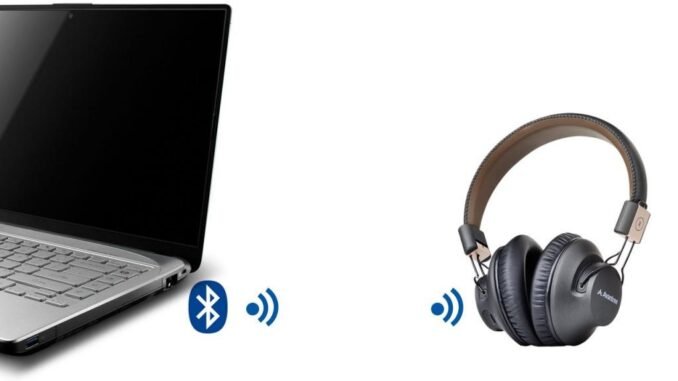
Learning how do I pair Bluetooth headphones to my laptop should take 60 seconds, but somehow it turns into a 20-minute ordeal of blinking lights and “device not found” messages. I have paired more Bluetooth headphones than I can count, and the process fails for the same handful of reasons every time. Follow the steps below in order and you will be listening in a minute.
How Do I Pair Bluetooth Headphones to My Laptop? Windows 11
- Put your headphones in pairing mode. This is the step everyone skips. Usually it means holding the power button for 3-5 seconds until the LED blinks blue/red or you hear “pairing.” Check your manual, every brand differs slightly. If the headphones auto-connect to your phone instead, turn off your phone’s Bluetooth temporarily.
- On the laptop: Settings > Bluetooth & devices > make sure Bluetooth is On.
- Click Add device > Bluetooth.
- Select your headphones from the list. Click Connect.
- You should hear a confirmation tone. Done.
Mac (macOS)
- Put headphones in pairing mode (same as above, phone Bluetooth off if they keep grabbing the connection).
- Apple menu > System Settings > Bluetooth, ensure it is on.
- Your headphones appear under Nearby Devices. Click Connect.
- For AirPods specifically, just open the case near the Mac and click Connect when the popup appears.
The Mistakes That Cause 90% of Pairing Failures
- Headphones not actually in pairing mode. Turning them on is not the same as pairing mode. Look for the specific blinking pattern or voice prompt. When in doubt, hold the power button longer than feels necessary.
- Still connected to your phone. Bluetooth headphones usually connect to one device at a time (unless they support multipoint). If they paired with your phone this morning, they will ignore your laptop. Disconnect from the phone first.
- Too far away. Stay within a few feet during pairing. Walls and distance cause silent failures.
- Laptop Bluetooth is off or broken. Check Device Manager (Windows) for Bluetooth driver issues. A surprising number of “pairing failures” are actually disabled Bluetooth radios.
- Old pairing data. If the headphones appear in your laptop’s Bluetooth list but will not connect, remove/forget the device on both ends and start fresh.
Fixing Common Problems After Pairing
“Connected” but no sound
Right-click the speaker icon > Sound settings, and make sure your headphones are set as the output device. Laptops love defaulting back to speakers. On Mac: System Settings > Sound > Output.
Terrible sound quality on calls
This is the infamous Hands-Free/Headset profile problem. When the microphone activates, Bluetooth drops to low-quality mono audio. Fixes: in Windows Sound settings, disable the “Hands-Free Telephony” service for the headphones (use your laptop’s built-in mic instead), or on Mac, make sure the input is set to the internal microphone, not the headphones.
Audio stuttering or cutting out
- Move closer to the laptop; Bluetooth range indoors is 20-30 feet realistically.
- Disconnect other Bluetooth devices competing for bandwidth.
- Update your laptop’s Bluetooth drivers (Windows) or macOS.
- Microwave ovens, USB 3.0 hubs, and wireless mice can interfere, move the headphones’ receiver side away from them.
- On Windows, disable Bluetooth power saving: Device Manager > Bluetooth adapter > Properties > Power Management > uncheck “Allow the computer to turn off this device.”
Pairing works but disconnects randomly
Usually a power-saving or driver issue. Update drivers first, disable power management second, and if it persists, a $15 USB Bluetooth 5.3 adapter (TP-Link and others) often outperforms flaky built-in laptop Bluetooth entirely.
Multipoint: The Feature Worth Having
If you constantly switch between laptop and phone, look for headphones with multipoint connection (Soundcore, Sony, Bose, and Jabra mid-range and up). They stay connected to both devices and switch automatically when a call comes in. Once you have used it, going back to manual switching feels prehistoric.
The Bottom Line
Pairing Bluetooth headphones to your laptop is: headphones into pairing mode (phone Bluetooth off), laptop Bluetooth settings, Add device, Connect. When it fails, it is almost always pairing mode not engaged or the phone stealing the connection. For call-quality issues, switch the mic input to your laptop. And if your laptop’s Bluetooth is chronically flaky, a $15 USB adapter solves it permanently.
Common Questions, Answered
Can I connect Bluetooth headphones to two devices at once?
Only if your headphones support multipoint connection. Many mid-range and premium models (Sony, Bose, Jabra, Soundcore) do; most budget models connect to one device at a time. Check your specs for “multipoint” or “dual connection.” Without it, you must disconnect from one device before connecting to the other, which is the source of most people’s pairing frustration.
Why do my Bluetooth headphones sound worse on laptop calls?
When the microphone activates, Bluetooth switches to the low-bandwidth Hands-Free profile, dropping music to mono telephone quality. This is a Bluetooth standard limitation, not a defect. The fix: in sound settings, set your input to the laptop’s built-in microphone instead of the headphones, keeping the high-quality stereo profile for audio output.
What is Bluetooth latency, and does it matter?
Latency is the delay between audio signal and sound, typically 100-250ms on standard Bluetooth. It matters for video (lip-sync issues) and gaming (delayed sound effects), but not for music. Codecs like aptX Low Latency and LC3 reduce it significantly if both devices support them. For video calls, the delay is usually imperceptible; for competitive gaming, wired is still king. The Bluetooth Special Interest Group’s technology overview explains current standards.
My laptop does not have Bluetooth. What are my options?
A USB Bluetooth adapter ($12-$20 from TP-Link or similar) adds modern Bluetooth 5.x to any laptop in seconds, often outperforming old built-in Bluetooth anyway. Alternatively, many wireless headphones include a USB dongle option, or you can simply use wired headphones. The adapter route is cheapest and preserves your wireless headphones investment.
Leave a Reply