
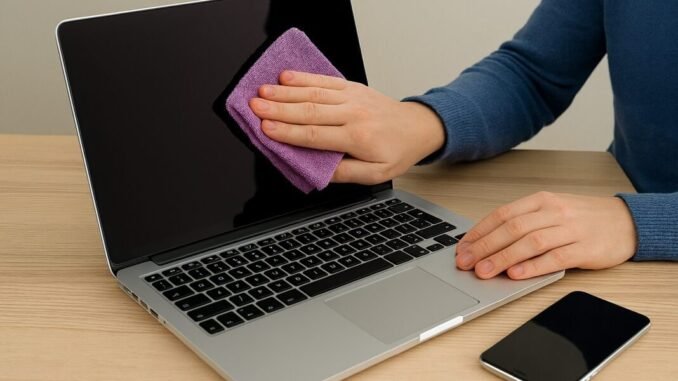
Learning how do I clean my laptop screen without scratching it properly matters because I have seen people permanently damage expensive displays with paper towels and Windex. Modern laptop screens have delicate anti-glare and anti-reflective coatings that harsh cleaners strip right off, leaving cloudy patches that never go away. The safe method is almost insultingly simple, and it costs about five dollars.
How Do I Clean My Laptop Screen Without Scratching It? The Safe Method
- Power off the laptop and unplug it. A dark screen makes smudges visible, and you avoid any electrical weirdness. Let it cool if it has been running hot.
- Dry-wipe first with a clean microfiber cloth. Use light, circular motions. This alone removes 80% of dust and fingerprints. Use a fresh, clean microfiber cloth, not the one that has been wiping your kitchen counter. Trapped grit in a dirty cloth is what actually causes scratches.
- For stubborn smudges, dampen the cloth, never the screen. Lightly mist the microfiber cloth with distilled water or a dedicated screen cleaner, then wipe gently. Never spray liquid directly onto the screen, it can seep into the edges and damage internal components.
- Wipe in one direction with minimal pressure. Let the dampness do the work, not your muscles. Pressing hard on an LCD can damage pixels.
- Buff dry with the dry side of the cloth to prevent streaks.
What to Use (and What to Never Use)
- USE: Microfiber cloths. The soft, lint-free kind sold for glasses and screens. A 6-pack costs ~$8 on Amazon. Wash them regularly without fabric softener, which leaves residue.
- USE: Distilled water. Tap water leaves mineral spots. Distilled is pennies and spot-free.
- USE: Dedicated screen cleaners (like Whoosh or similar) for greasy fingerprints. They are pH-balanced for display coatings.
- NEVER USE: Paper towels, tissues, or toilet paper. Wood fibers scratch coatings. This is the number one screen-killer.
- NEVER USE: Windex or ammonia-based cleaners. Ammonia strips anti-reflective coatings. That cloudy haze people complain about? Usually Windex damage.
- NEVER USE: Alcohol or acetone on most screens, they can damage coatings. (Apple specifically says 70% isopropyl is OK on some displays, check your manufacturer’s guidance, but water is safer universally.)
- NEVER USE: Your shirt, sleeve, or tie. Fabric picks up grit throughout the day. Just do not.
Dealing With Stubborn Spots
For dried-on gunk (mystery sticky spots, dried coffee spray), dampen the microfiber cloth, lay it over the spot for 30 seconds to soften it, then wipe gently. Repeat rather than scrub. For sticker residue near the bezel, a tiny amount of screen-safe cleaner on the cloth works, keep all moisture away from the actual display panel edges. Never use a razor blade, credit card edge, or fingernail on the screen surface.
Touchscreen Laptops Need Extra Care
Touchscreens collect oils constantly and their coatings wear faster. Wipe yours down weekly with a dry microfiber cloth to prevent oil buildup from baking in. If your laptop came with a screen protector, consider keeping it, it takes the abuse so the actual display does not have to. Replacement protectors cost $10-$15, a new screen costs $150-$300.
Keep It Clean Longer
- Wash your hands before long typing sessions. Sounds obvious, dramatically reduces smudges.
- Do not touch the screen. Point with the cursor, not your finger. Every touch is an oil deposit.
- Close the lid gently and keep crumbs and pens off the keyboard, they press into the screen when closed and cause the mysterious scratches people blame on cleaning.
- Store the microfiber cloth in a drawer or bag, not loose where it collects grit.
The Bottom Line
Cleaning your laptop screen without scratching it is simple: power off, dry-wipe with a clean microfiber cloth, use a lightly dampened cloth (distilled water only) for stubborn spots, and never spray liquid on the screen. Ban paper towels and Windex from the vicinity forever. Five dollars of microfiber cloths protects a $1,000 display, the easiest win in tech maintenance.
Quick Answers to Common Questions
Can I use eyeglass cleaner on my laptop screen?
Most eyeglass cleaners are safe for laptop screens since they are designed for coated lenses, but check the ingredients: avoid anything with ammonia or high alcohol content. Dedicated screen cleaners are formulated specifically for display coatings and are the safer choice. When in doubt, distilled water on a microfiber cloth handles 95 percent of cleaning needs with zero risk.
How do I remove a scratch from my laptop screen?
Honestly, you usually cannot. Scratch-removal kits and home remedies (toothpaste, baking soda) risk making things worse by damaging the anti-reflective coating around the scratch. Minor scratches are often only visible on dark backgrounds and can be lived with. Deep scratches require professional screen replacement. Prevention with proper cleaning tools is the real answer. When in doubt, follow Apple’s official device cleaning guidance.
Is it safe to use disinfectant wipes on my laptop screen?
Only wipes specifically labeled safe for electronics and screens. Standard disinfectant wipes (Lysol, Clorox) contain chemicals that can damage display coatings with repeated use. Apple permits 70% isopropyl wipes on some displays, but check your manufacturer’s guidance first. For the screen itself, stick with microfiber and water; save disinfectants for the keyboard and chassis.
Why does my screen look cloudy after cleaning?
FAQs
Can I use paper towels on my laptop screen?
It’s best not to. Paper towels are rougher than they feel and can leave micro-scratches on the display coating over time. Tissues and toilet paper are worse — they shed fibers and can be abrasive. A clean, dry microfiber cloth is the safest option for everyday dust, and a barely damp one for smudges. If you’ve been using paper towels for years without obvious damage, you’ve been lucky — the coating wears down gradually.
Is distilled water really necessary, or is tap water fine?
Distilled water is the safer choice, especially if you live somewhere with hard water. Tap water can leave mineral spots and streaks as it dries, and those spots invite you to rub harder — which is exactly what causes scratches. A bottle of distilled water costs a dollar or two and lasts ages for screen cleaning. If you’re in a pinch, filtered water is a decent middle ground.
How do I clean a screen with anti-glare or matte coating?
Matte and anti-glare coatings are actually more forgiving with smudges but easier to damage with chemicals. Stick to a dry microfiber cloth first — fingerprints come off more easily on these than you’d expect. If a damp cloth is needed, wring it out thoroughly so it’s nearly dry. Never spray cleaner directly on a matte screen; the coating can absorb liquid unevenly and leave blotchy patches that won’t buff out.
Can I clean my screen while the laptop is on?
You can, but it’s harder to see what you’re doing. Turning the screen off — or even better, shutting the laptop down — makes smudges and dust far more visible against the dark display, so you know when you’re actually done. A powered-off screen also removes any risk of pressing keys or changing settings while you wipe. It only takes a minute, and you’ll do a better job.
How often should I be cleaning my laptop screen?
For most people, a quick dust-off with a dry microfiber cloth once a week keeps things looking sharp. If you sneeze near your screen or eat lunch at your desk, a slightly damp wipe every couple of weeks handles the buildup. Don’t overdo it — excessive wiping wears the coating faster. A simple rule: clean it when you notice smudges in normal use, and leave it alone the rest of the time.
Cloudiness usually means residue: either cleaner that was not buffed off, fabric softener residue from the cloth, or coating damage from harsh chemicals used previously. Re-wipe with a clean, slightly damp microfiber cloth using distilled water, then buff dry. If cloudiness persists after proper cleaning, the coating itself may be damaged, which unfortunately is permanent.
Leave a Reply