
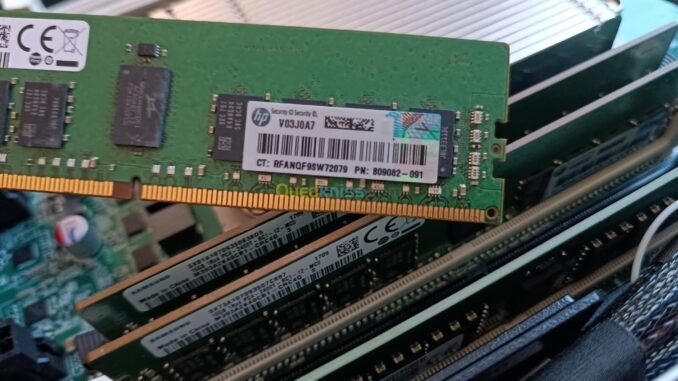
Spotting what are the signs my computer needs more RAM can save you from buying a whole new computer when a $40-$80 upgrade would fix everything. RAM (memory) is your computer’s short-term workspace, and when it fills up, everything slows to a crawl. I have resurrected “dying” laptops with a simple RAM upgrade more times than I can count, and the transformation is dramatic.
What Are the Signs My Computer Needs More RAM? The 7 Telltales
- Everything slows when you multitask. One program runs fine, but open a browser, Spotify, and Word together and the whole machine chugs. Classic RAM starvation: each app alone fits, but together they overflow.
- Browser tabs reload constantly. You switch back to a tab and it refreshes from scratch. The browser is dumping tabs from memory to survive. If this happens with 10-15 tabs open, you need more RAM.
- The hard drive churns nonstop. Hear constant disk activity or see the disk light solid? Your computer is “swapping”, using the much slower drive as emergency memory. Swapping on an old spinning hard drive feels like wading through mud; on an SSD it is merely sluggish.
- Programs freeze or crash under load. Video editors, photo editors, and even big spreadsheets crashing when projects get large is a textbook symptom.
- Slow startup that gets worse. Some slowdown with age is normal, but boot times ballooning as you add startup programs points to memory pressure.
- “Out of memory” errors. The computer is literally telling you. Believe it.
- Task Manager shows 80%+ memory constantly. The definitive test (below).
How to Check Your RAM Usage Right Now
- Windows: Ctrl+Shift+Esc opens Task Manager > Performance tab > Memory. Watch the percentage during your normal workload. Regularly above 80%? You need more. Also check how many slots are used versus available, under the graph.
- Mac: Activity Monitor > Memory tab. Look at Memory Pressure (green = fine, yellow/red = upgrade time) and the Swap Used figure. Heavy swap usage means the Mac is begging for more RAM.
- The real-world test: Open everything you normally use simultaneously, then check. That is your actual need, not some benchmark.
How Much RAM Do You Actually Need?
- 8GB: Minimum for comfortable use in 2026. Fine for browsing, Office, streaming, and light multitasking.
- 16GB: The sweet spot for most people. Handles heavy multitasking, photo editing, programming, and dozens of browser tabs without breaking a sweat. This is what I recommend for any new computer.
- 32GB+: Video editing, 3D work, virtual machines, serious development, or extreme tab hoarding (no judgment).
- 4GB: Only acceptable for Chromebooks doing basic web tasks. On Windows or Mac, 4GB in 2026 is painful.
Can Your Computer Even Be Upgraded?
This is the catch. Many modern laptops have soldered RAM that cannot be upgraded, including MacBook Air/Pro, Microsoft Surface, and most ultrabooks. Before buying RAM:
- Check your model’s specs on the manufacturer’s site or Crucial’s memory finder (crucial.com), which tells you exactly what fits and the maximum capacity.
- Desktop PCs: Almost always upgradeable, and it is a 5-minute job.
- Business/gaming laptops: Often have accessible slots (ThinkPads, Dell Latitudes, many gaming laptops).
- Check if RAM is the real bottleneck first. A computer with 8GB RAM but a spinning hard drive will benefit far more from an SSD upgrade ($40-$70) than from more RAM. The SSD is the single best upgrade for old computers, full stop.
RAM Upgrade vs. New Computer
- Upgrade RAM when: The computer is under 5 years old, has an SSD (or you will add one), the CPU is decent, and RAM is the clear bottleneck. $40-$80 for 8GB→16GB is the best value upgrade in computing.
- Buy new when: RAM is soldered and insufficient, the CPU is ancient, multiple components need upgrading, or the machine is 7+ years old. At some point you are putting premium gas in a car with three flat tires.
- Do both SSD + RAM: On a 4-6 year old laptop with a hard drive and 4-8GB RAM, a $100-$120 SSD+RAM combo makes it feel like a new machine. I have done this upgrade dozens of times and it never disappoints.
Buying RAM Without Getting Burned
- Match the type: DDR4 vs DDR5 matters, they are not interchangeable. Crucial’s finder or your manual tells you which.
- Match speeds loosely: Faster RAM in a slower board just runs at the slower speed. Fine, but do not pay extra for speed your board cannot use.
- Buy in matched pairs for dual-channel performance (2x8GB beats 1x16GB slightly).
- Reputable brands: Crucial, Corsair, Kingston, G.Skill. Avoid no-name RAM, memory errors from cheap sticks cause maddening random crashes.
The Bottom Line
Your computer needs more RAM if multitasking slows everything down, tabs constantly reload, the disk churns endlessly, or Task Manager shows 80%+ memory during normal use. 16GB is the sweet spot for most people in 2026. Check upgradeability first (soldered RAM cannot be upgraded), consider an SSD at the same time for maximum impact, and remember: a $40-$80 RAM upgrade that fixes the actual bottleneck beats a $600 new computer every time.
Common Questions, Answered
Is 16GB RAM overkill for basic use?
In 2026, no longer. Browsers, video calls, and background apps consume more than ever, and 16GB is the comfortable standard that keeps a computer feeling fast for years. It is not overkill; it is future-proofing. The price difference between 8GB and 16GB configurations (often $50-$100) is small relative to the usable-life extension it buys.
Can I mix different RAM brands or sizes?
Mixing sizes works (an 8GB stick plus a 4GB stick gives 12GB) but may disable dual-channel mode, costing a few percent performance. Mixing brands is generally fine if specifications match (DDR4-3200 with DDR4-3200). For best results, buy matched pairs from a reputable brand. Never mix DDR generations; DDR4 and DDR5 are physically incompatible.
Will adding RAM void my warranty?
On desktops and user-serviceable laptops, no; RAM is a designated user-upgradeable component. On ultrabooks with sealed chassis, opening the case can void warranties, and many have soldered RAM anyway. Check your manual’s maintenance section. When in doubt, manufacturer-authorized service centers perform upgrades without warranty issues for a small labor fee.
How do I know if my slow computer needs RAM or an SSD?
Check Task Manager (Performance tab) during slowdowns: memory consistently above 80% means RAM; disk at 100% with modest memory use means the drive. If the computer still has a spinning hard drive, the SSD upgrade helps more than RAM in almost every case. The ideal budget upgrade does both, but if forced to choose one, SSD first for HDD machines, RAM first for SSD machines showing memory pressure. Use Crucial’s memory buying guides to confirm compatibility before ordering.
Leave a Reply