
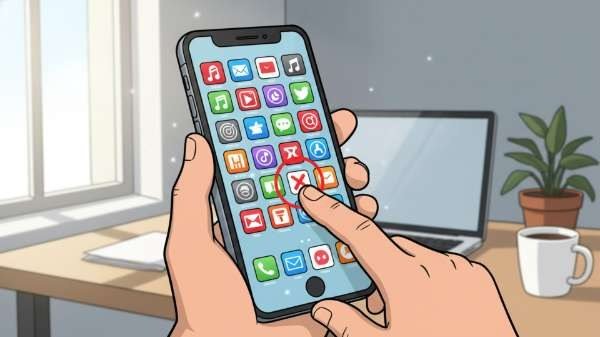
Figuring out how do I delete apps I don’t use without losing my data is the key to freeing up gigabytes of storage without that cold sweat of “wait, were my photos in that app?” I have cleaned up phones for family members who were terrified to delete anything, and the good news is: on both iPhone and Android, your important data almost always lives somewhere safe even after the app is gone.
The trick is knowing what “delete” actually removes versus what stays in the cloud, and using the right method for each situation.
How Do I Delete Apps I Don’t Use Without Losing My Data? The iPhone Method
iPhone gives you two options, and the difference matters:
- Offload App: This is the magic one. It deletes the app itself but keeps all your documents and data on the phone. The app icon stays on your home screen with a little cloud badge, and reinstalling restores everything exactly as it was. Go to Settings > General > iPhone Storage, tap any app, and choose Offload App. You can even turn on Offload Unused Apps to do this automatically.
- Delete App: Removes the app AND its local data. But here is what most people miss: anything synced to iCloud (photos, notes, contacts) or stored on the app’s own servers (Facebook, Instagram, Gmail, banking apps) is completely unaffected. Log back in after reinstalling and everything is there.
So for most apps, deleting is safe because your data was never only on your phone to begin with. The risky ones are apps that store data only locally: some note apps, voice recorders, games without cloud save, and authenticator apps. Check those individually before deleting.
The Android Method
Android does not have offloading, but the principle is the same:
- Go to Settings > Storage to see which apps are hogging space. The list sorted by size is always eye-opening.
- For apps you might want later, just uninstall normally. Your Google account preserves purchase history, and most modern apps sync data to the cloud.
- Before uninstalling, open the app and check for a backup or sync option in its settings. Messaging apps like WhatsApp and Signal need explicit backup steps, do not skip these.
- Games: check whether progress syncs via Google Play Games or Facebook login. If it only saves locally, your progress dies with the uninstall.
What Is Safe to Delete vs. What Needs Care
- Totally safe: Social media apps, streaming apps (Netflix, Spotify), shopping apps, banking apps, email apps, browsers. All your data lives on their servers.
- Safe with one check: Photo editors (are originals in your camera roll or cloud?), note apps (synced to iCloud/Google?), messaging apps (chat backup enabled?).
- Handle with care: Authenticator apps (export or transfer codes first, losing these can lock you out of accounts), crypto wallets (back up seed phrases), health/fitness apps with local-only history, voice memos not yet synced.
- Never delete to save space: System apps and anything you do not recognize. Disabling is safer than deleting for preinstalled apps you cannot remove anyway.
Free Up Space Without Deleting Apps at All
Sometimes the apps are not the problem. Before deleting anything, try these:
- Clear app caches. On Android, Settings > Apps > [app] > Storage > Clear Cache. Social media apps can hoard gigabytes of cached images. (iPhone handles this automatically; offloading and reinstalling achieves the same.)
- Review downloaded media. Spotify, Netflix, and podcast apps with offline downloads are often the real storage hogs, not the apps themselves. Delete old downloads.
- Move photos to the cloud. Enable iCloud Photos or Google Photos backup, then use “Optimize Storage” to keep smaller versions on the phone.
- Delete old message attachments. Years of shared videos in Messages/WhatsApp add up. Both apps let you review and bulk-delete large attachments.
Setting Up Auto-Cleanup So You Never Think About This Again
On iPhone, enable Offload Unused Apps (Settings > App Store) and forget about it, iOS quietly reclaims space from apps you ignore. On Android, Files by Google (free) suggests unused apps and junk files to remove with smart recommendations. And both platforms’ cloud photo options mean your camera roll never has to be the thing that fills your phone again.
The Bottom Line
Deleting apps you do not use without losing data is straightforward: use Offload on iPhone to keep data while freeing space, and on both platforms remember that cloud-synced apps (social, streaming, banking, email) lose nothing when deleted. Only pause for authenticator apps, local-only notes, and game saves, back those up first. Do a cleanup pass twice a year and storage anxiety becomes a thing of the past.
Quick Answers to Common Questions
Does offloading an app delete my photos or messages in it?
No. Offloading removes only the app’s code; all its data stays on your phone. When you reinstall, everything is exactly as you left it. This makes offloading the safest cleanup method on iPhone. Note that if you later choose Delete App instead of reinstalling, the kept data is removed at that point, so reinstall first if you want to preserve anything.
Will deleting and reinstalling an app log me out?
Usually yes for the app’s local session, but logging back in restores everything because your account data lives on the company’s servers. The exceptions are apps with local-only data (some authenticators, notes, and games), which is why the guide flags those for special care. For mainstream apps like Instagram, Spotify, or your bank, deletion is completely safe. Apple explains the difference in Apple Support’s app management guide.
How much space can I realistically free up?
Most people recover 5 to 20GB from a thorough cleanup: unused apps (1-5GB), cached data (2-8GB), old downloads (2-10GB), and message attachments (2-10GB). The biggest wins usually come from downloaded media and message attachments rather than the apps themselves. Check your storage breakdown before and after; the before-and-after is satisfying.
Should I use a cleaner app to free up space?
On iPhone, cleaner apps cannot do anything iOS does not already allow, and many are subscription traps; skip them. On Android, the built-in storage manager and Google’s Files app handle cleanup well. Avoid third-party “RAM booster” and “junk cleaner” apps aggressively, as they provide no real benefit and some harvest data.
Leave a Reply