
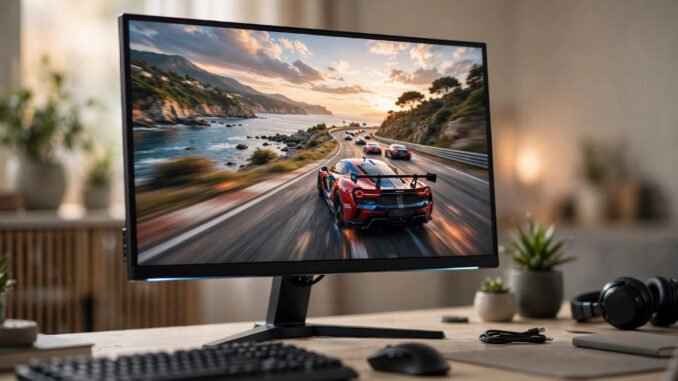
How do you start choosing a gaming monitor as a complete beginner? Walk into the specs — 144Hz, 1ms, IPS, HDR400, FreeSync — and it’s reasonable to walk right back out. But here’s the good news: monitor shopping is one of the most learnable tech purchases, because only four specs actually matter for beginners, and the marketing noise around the rest can be safely ignored. This guide teaches you those four specs, the traps to avoid, and exactly what to buy at three budgets in 2026.
The Four Specs That Actually Matter
Forget everything else on the box. For a beginner, monitor quality comes down to:
1. Refresh rate: the big one (get 144Hz or higher)
Refresh rate — how many times per second the screen updates — is the single most noticeable upgrade in gaming. Moving from 60Hz to 144Hz makes motion visibly smoother and, in shooters, genuinely easier to track. It’s the rare spec you feel within seconds. In 2026, 144Hz+ panels start around $150, so there’s no reason for a gaming beginner to buy 60Hz. Higher (240Hz+) matters mostly for competitive players; 144–180Hz is the beginner sweet spot.
2. Resolution: match it to your hardware
1080p (Full HD) remains the smart beginner choice: it looks sharp at 24 inches, and modest GPUs drive high frame rates at it. 1440p (QHD) is the enthusiast sweet spot — noticeably sharper, but demands a stronger graphics card. 4K is gorgeous and expensive to run (you need a powerful, pricey GPU to push 4K at high refresh). Rule: buy the resolution your GPU can actually drive at 100+ fps — a 4K monitor paired with a weak GPU is a worse experience than 1080p done right.
3. Panel type: IPS for most beginners
Three technologies dominate: IPS (best colors and viewing angles, slightly slower response — the beginner default), VA (deeper blacks, better contrast, can smear in fast motion), and TN (fastest response, worst colors — fading out). For a beginner playing a mix of games, IPS is the safe, satisfying choice. OLED gaming monitors exist and look staggering, but at $700+ with burn-in considerations, they’re a second-monitor purchase, not a first.
4. Adaptive sync: FreeSync/G-Sync (just get it)
Adaptive sync matches the monitor’s refresh to your GPU’s output, eliminating screen tearing and stutter. In 2026 it’s standard on virtually every gaming monitor — just confirm it’s present (FreeSync for AMD, G-Sync Compatible for NVIDIA; most monitors now support both). Non-negotiable, but you won’t have to hunt for it.
RTINGS’ monitor reviews and test methodology measure all four of these rigorously — the best second opinion before buying.
Specs You Can Safely Ignore (Beginner Edition)
Marketing departments need you confused. You don’t need to be:
Response time (1ms claims). Real-world differences between 1ms and 4ms are imperceptible to beginners; the numbers are measured under incomparable conditions anyway. Any modern IPS gaming panel is fast enough.
HDR400. The entry-level HDR certification means almost nothing — true HDR needs high brightness (HDR600+) that budget panels lack. Don’t pay extra for the badge; evaluate the SDR picture.
Curved screens. Lovely at 32″+ ultrawide, pointless at 24″ 16:9. A preference, not a performance feature.
Built-in speakers. Universally mediocre. Budget $30 for desktop speakers or use a headset.
Size and Shape: The Practical Guide
24″ 1080p: the competitive standard — everything visible without head movement, cheapest high-refresh options. Best for shooters on a budget.
27″ 1440p: the all-rounder sweet spot — sharper image, more screen real estate, still affordable ($250–$400 in 2026). Best for most beginners.
32″+ / ultrawide: immersive for story games and great for multitasking, but demands more GPU power and desk space. A “later” purchase.
Sit about an arm’s length away; if you can see individual pixels, you’re too close or the resolution is too low for the size. And measure your desk — a 27″ monitor with a deep stand swallows a small desk; consider a $30 monitor arm, the unsung hero of setups.
What to Buy: Three Budgets (2026)
Tight budget (~$150–$200): 24″ 1080p 165Hz IPS. Multiple reputable brands hit this price with adaptive sync and decent color. This is 90% of the gaming-monitor experience for the price of two new games. Perfect pairing with an entry-level GPU.
Sweet spot (~$250–$350): 27″ 1440p 165–180Hz IPS. The monitor you’ll keep for five years. Sharper, roomier, still driven well by mid-range GPUs. If you can stretch to one monitor purchase, make it this one.
Treat yourself (~$500–$700): 27″ 1440p 240Hz+ or 34″ ultrawide 1440p. For competitive players (240Hz) or immersion lovers (ultrawide). Diminishing returns versus the sweet spot, but genuinely nicer.
Whatever you choose, buy from a retailer with a good return policy and check Tom’s Hardware’s current gaming monitor rankings before pulling the trigger — the value kings change with sales.
Setup Mistakes Beginners Make
Buying right is half the battle; setting up right is the other half. Enable the high refresh rate in your OS display settings (monitors often default to 60Hz out of the box — the most common beginner tragedy). Use DisplayPort over HDMI for high-refresh 1440p+. Turn on adaptive sync in your GPU control panel. And calibrate brightness to your room — showroom-blinding brightness causes eye strain in a dim bedroom.
A monitor is also part of a broader setup journey. The same careful-buying mindset applies to choosing a budget Chromebook for students or assembling AI tools for content creators on a budget — match the tool to the actual need, ignore the badge specs, and spend where it counts.
Conclusion: Four Specs, One Good Decision
Choosing a gaming monitor as a complete beginner comes down to four specs: 144Hz+ refresh rate, resolution your GPU can drive, IPS panel, and adaptive sync. Ignore the 1ms claims and HDR400 badges. Buy 24″ 1080p on a tight budget, 27″ 1440p as the sweet spot, and remember to actually enable 144Hz in settings — the step more beginners miss than any other. Do that, and your games will look and feel better on day one than most veterans’ setups did for years.
Frequently Asked Questions
What should a beginner look for in a gaming monitor?
Four things: 144Hz or higher refresh rate, a resolution your graphics card can run at high frame rates (1080p for entry GPUs, 1440p for mid-range), an IPS panel for good colors, and adaptive sync (FreeSync/G-Sync) to prevent tearing.
Is 144Hz worth it over 60Hz for beginners?
Absolutely — it’s the single most noticeable monitor upgrade. Motion is dramatically smoother and fast-moving targets are easier to track. In 2026, 144Hz+ monitors start around $150, so there’s little reason to buy 60Hz for gaming.
Should I get 1080p, 1440p, or 4K?
Match resolution to your GPU: 1080p for entry-level graphics cards, 1440p for mid-range (the sweet spot for most), 4K only with high-end GPUs. A lower resolution running at high frame rates beats a higher resolution stuttering.
Do I need HDR on a gaming monitor?
Not at beginner budgets. Entry-level HDR400 certification delivers little visible benefit; meaningful HDR requires brighter panels (HDR600+) that cost significantly more. Prioritize refresh rate and panel quality instead.
Why does my new 144Hz monitor feel the same as my old one?
You probably haven’t enabled it — monitors often default to 60Hz. Go to your OS display settings (and use DisplayPort), set the refresh rate to 144Hz or higher, and enable adaptive sync in your GPU control panel.
Leave a Reply