
If you are asking how can I speed up my slow Wi-Fi at home, I feel your pain. Nothing is more frustrating than a video call freezing mid-sentence or a movie buffering at the best part. The good news: in my experience, most slow Wi-Fi is not a “call the cable company” problem. It is a fixable-in-20-minutes problem, and about half the fixes below cost nothing.
Before touching anything, run a speed test at speedtest.net standing next to your router, then again in the room where Wi-Fi is slow. That comparison tells you whether your internet itself is slow or your Wi-Fi signal is the weak link, and it changes everything about what to fix.
How Can I Speed Up My Slow Wi-Fi at Home? Start With the Free Fixes
1. Restart your modem and router (properly)
Unplug both, wait a full 30 seconds, plug the modem back in first, wait for its lights to stabilize (about two minutes), then plug in the router. This clears memory leaks and forces a fresh connection to your ISP. I do this monthly and it fixes a surprising number of mysterious slowdowns.
2. Move your router to a better spot
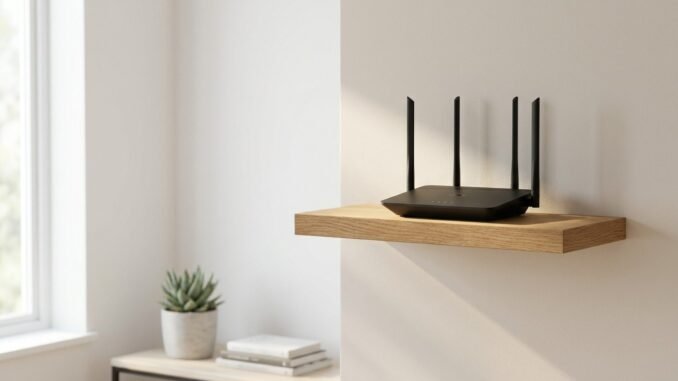
Wi-Fi signals radiate outward and downward, and they hate obstacles. The ideal spot is central, elevated, and out in the open, not buried in a cabinet, behind the TV, or on the floor in a corner. Moving a router from a basement corner to a main-floor shelf has literally doubled speeds for people I have helped. Keep it away from microwaves, baby monitors, and thick concrete or brick walls.
3. Switch to the 5 GHz band
Most routers broadcast two networks: 2.4 GHz (longer range, slower) and 5 GHz (shorter range, much faster). If your device keeps clinging to 2.4 GHz, manually connect to the 5 GHz network name. In the same room as the router, 5 GHz can be three to five times faster.
4. Change your Wi-Fi channel
In apartments, twenty routers screaming on the same channel is the number one cause of slowdowns. Use a free app like WiFi Analyzer (Android) to see congested channels, then log into your router settings (usually 192.168.1.1 in a browser) and switch to a emptier one. Channels 1, 6, and 11 are the only non-overlapping choices on 2.4 GHz.
5. Update your router’s firmware
Manufacturers push performance and security fixes regularly, but most routers never update themselves. Check your router’s admin page or app for a firmware update option. Five minutes, occasionally a dramatic difference.
6. Kick freeloaders off your network
Check the connected-devices list in your router app. An old tablet, a neighbor you once gave the password to, or a forgotten smart device can be hogging bandwidth. Change your Wi-Fi password if the list looks unfamiliar, it is the fastest eviction notice there is.
Fixes That Cost a Little Money (and Are Worth It)
7. Upgrade to a mesh Wi-Fi system
If you have dead zones, a single router cannot fix physics. Mesh systems like the Amazon Eero 6+ (~$200 for a 3-pack), Google Nest Wifi, or TP-Link Deco blanket your home in signal and are dead simple to set up. This is the single biggest upgrade most larger homes can make, and I recommend it constantly.
8. Replace an ancient router
If your router is more than five years old, it is probably a Wi-Fi 5 (or older) model choking your modern speeds. A current Wi-Fi 6 router ($80-$150) handles many more devices at once, which matters now that the average home has 20+ connected gadgets.
9. Plug in what does not move
Smart TVs, desktop PCs, and game consoles do not need Wi-Fi. A $15 Ethernet cable (or a powerline adapter for $40-$60 if running cable is impractical) gives them full speed and frees up wireless airtime for your phones and laptops.
When the Problem Is Your Internet Plan, Not Your Wi-Fi
Here is how to tell: if speeds are slow even standing next to the router, your plan or ISP is the bottleneck. A household of four with streaming, gaming, and video calls needs at least 200-300 Mbps download in 2026. Check what you are paying for versus what speedtest shows. If you are getting far less than promised consistently, call your ISP, they will often fix line issues or bump you to a better plan. The FCC’s broadband resources are also worth a look if you suspect you are being throttled or oversold.
10. Check for bandwidth hogs
Cloud backups, 4K streams on three TVs, and big game downloads can saturate even fast connections. Most routers let you enable QoS (Quality of Service) to prioritize video calls and gaming over background downloads. It takes five minutes to configure and ends a lot of household arguments.
11. Try a different DNS
Switching your DNS to 1.1.1.1 (Cloudflare) or 8.8.8.8 (Google) in your router settings can shave noticeable milliseconds off page loads. It will not fix a truly slow connection, but it is free and takes two minutes.
12. Know when to call your ISP
If you have done everything above and speeds next to the router are still far below your plan, the problem is on their end: a degraded line, an outdated modem, or neighborhood congestion. Ask them to check your line quality and whether your modem supports your plan’s speed tier. Rental modems are often outdated, buying your own ($80-$120) pays for itself in under a year of saved rental fees.
The Bottom Line
Speeding up slow home Wi-Fi usually comes down to placement, a proper restart, switching to 5 GHz, and clearing channel congestion, all free. If dead zones persist, a mesh system is the upgrade that actually works. Work through the list in order, test as you go, and stop when it is fast enough. Most homes I have helped never need to get past step six.
Quick Answers to Common Questions
What is a good Wi-Fi speed for working from home?
For one remote worker on video calls, 100 Mbps down and 10 Mbps up is comfortable. Two people on simultaneous video calls want 200 Mbps down and at least 20 Mbps up. Remember that video calls depend heavily on upload speed, which cable plans often skimp on. Test your actual speeds at speedtest.net during work hours, not just at midnight.
Should I rent my router from my ISP or buy my own?
Buy your own. ISP rental fees run $10 to $15 per month, so a $120 router pays for itself in under a year, and your own router is almost always better hardware with more features. The one exception: fiber providers whose service requires their gateway device. Even then, you can usually put theirs in bridge mode and use your own router behind it.
Do Wi-Fi extenders actually work?
Cheap single-band extenders often disappoint because they halve your bandwidth repeating the signal. If you have dead zones, a mesh system is the modern answer and worth the extra cost. Powerline adapters (which send network signal through your electrical wiring) are a solid middle option for one stubborn room, running about $40 to $60.
How often should I restart my router?
A monthly restart prevents most slowdowns from memory leaks and stale connections. Many modern routers let you schedule an automatic weekly reboot at 3 AM, which means you never have to think about it. If you find yourself restarting weekly to fix problems, your router is telling you it needs a firmware update or replacement. The FCC’s consumer broadband guides offer additional troubleshooting help.
Leave a Reply